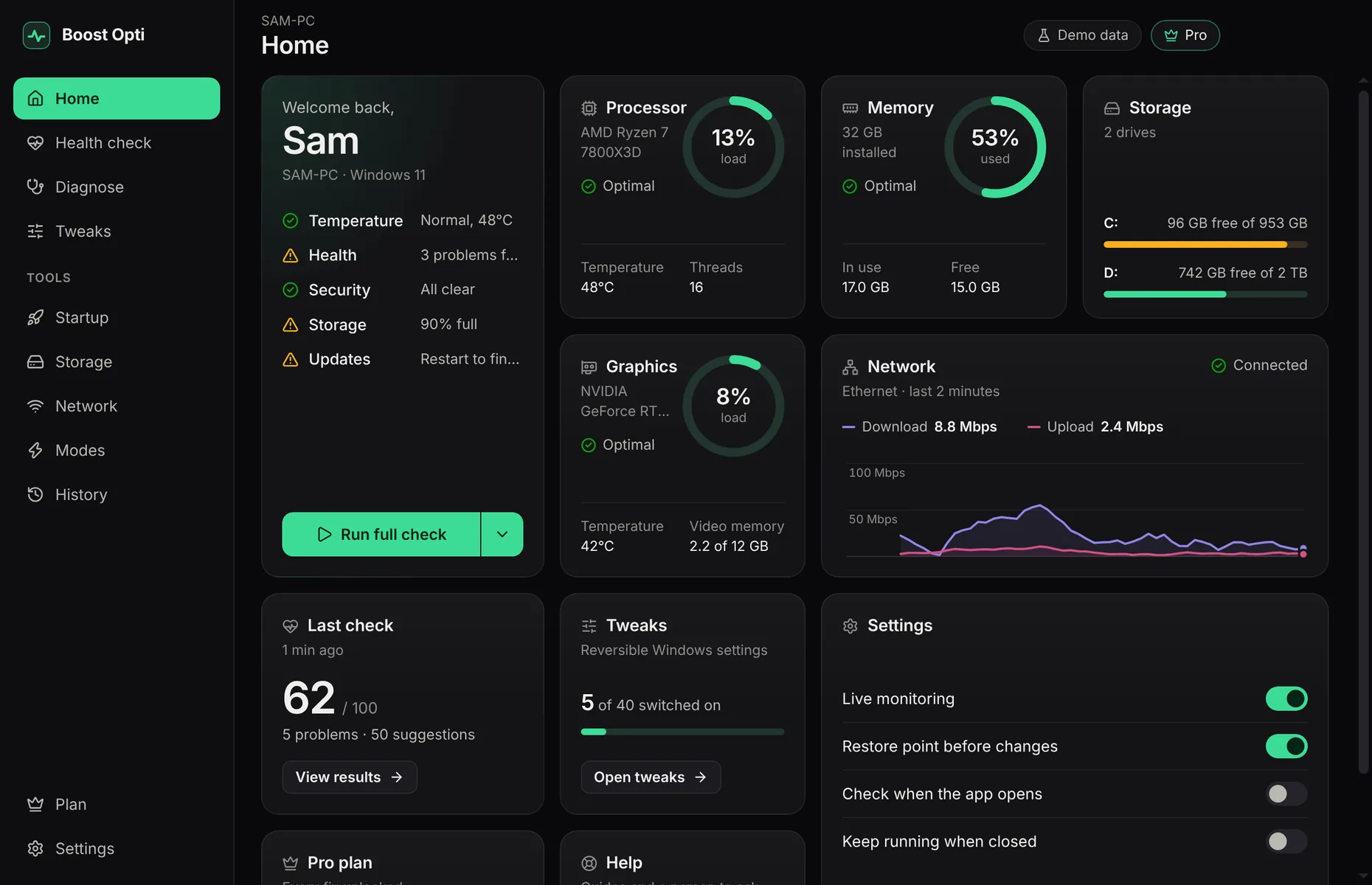
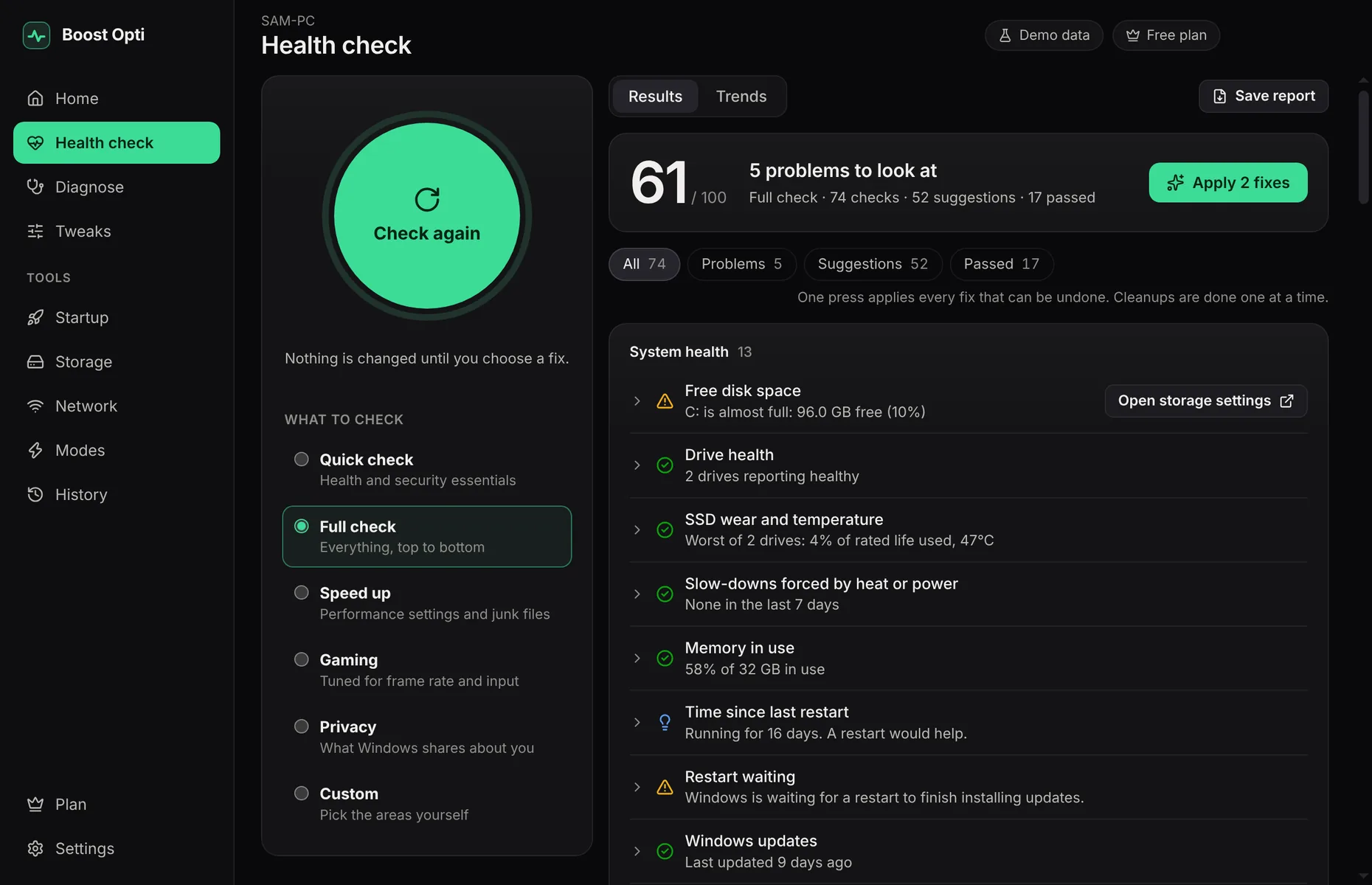
74 checks of health, security, speed and privacy, from one button.
Diagnose
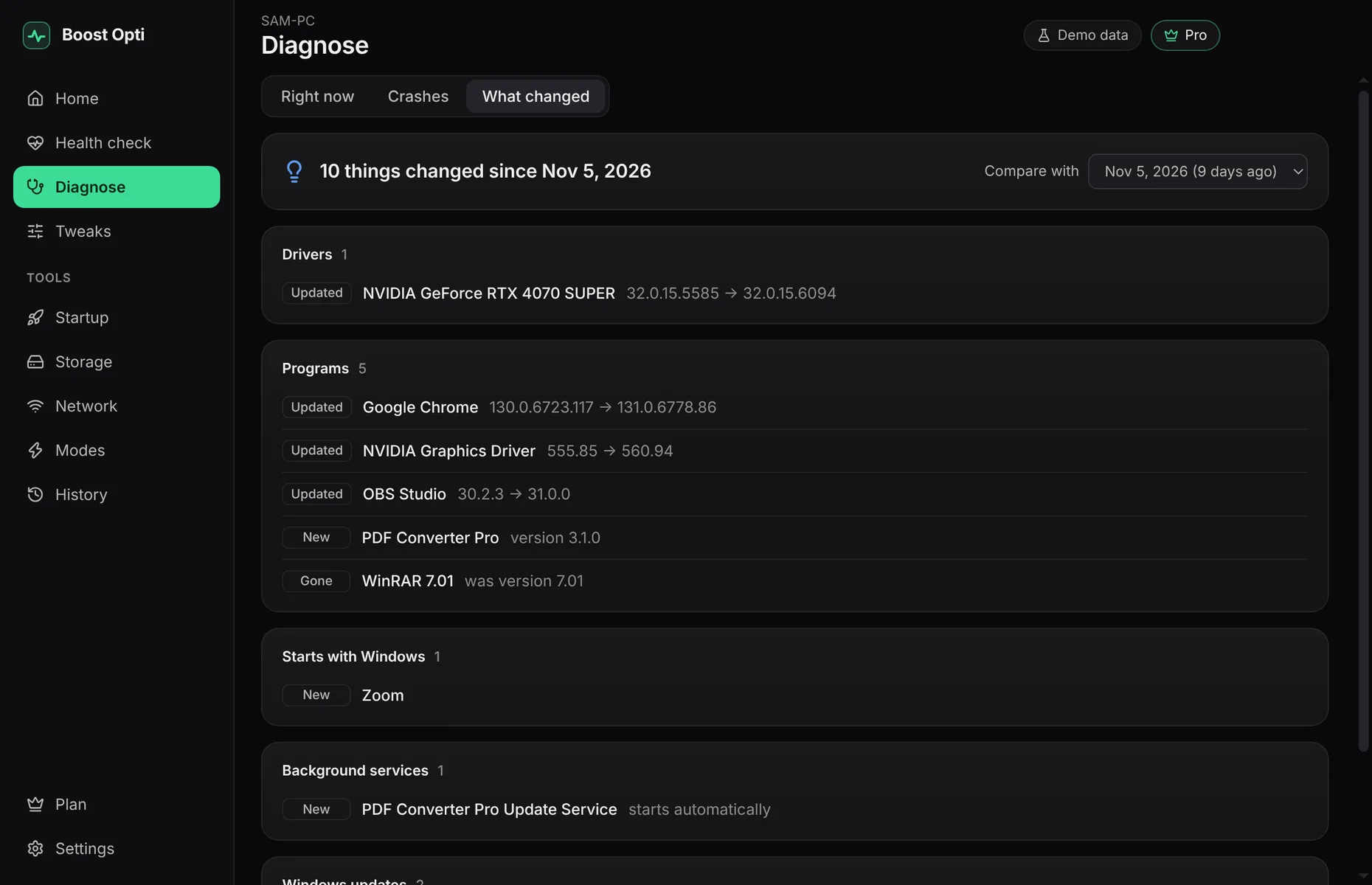
What’s slow right now, why it crashed, and what changed since last week.
Change
Fixes that use settings Windows itself provides. One press applies them.
Undo
Every change remembers what it replaced. Putting it back is free.
Built for the PC you actually have.
The same check reads differently on a gaming rig and on a five-year-old laptop. Pick yours.
The Gaming check goes after what costs frames: a 165 Hz monitor left at 60 Hz, fast memory running at its slow default, heat forcing the processor to slow down, an old graphics driver. Automatic mode switches to High performance while a game runs and puts your own plan back afterwards.
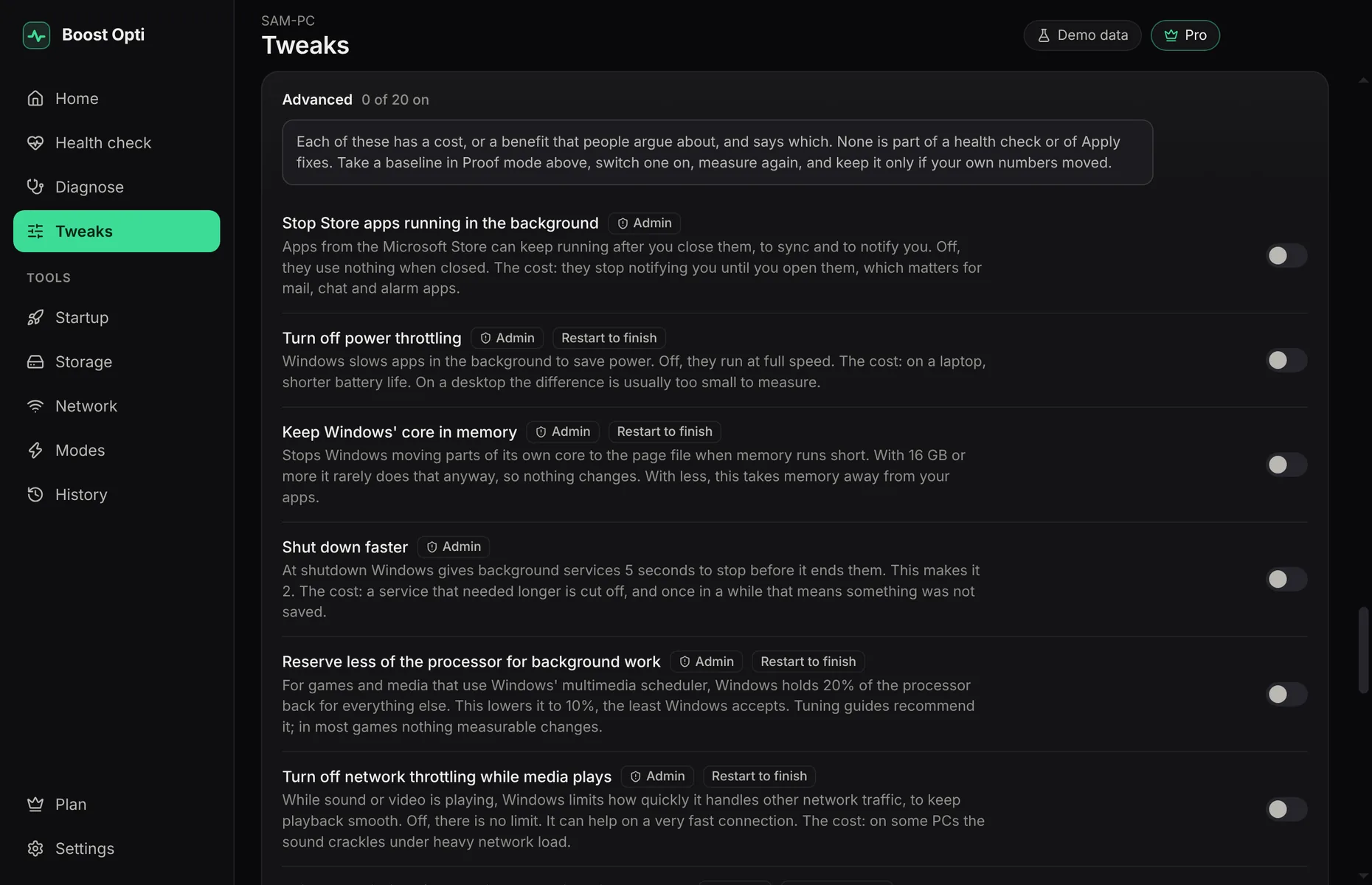
60 switches in all. Twenty of them are kept apart under Advanced: the settings tuning guides swear by, and the ones that switch off something you may be using. Each says what it costs, or that people argue about whether it helps, and none is switched on for you. Take a baseline, switch one on, measure again, and keep it only if your own numbers moved.
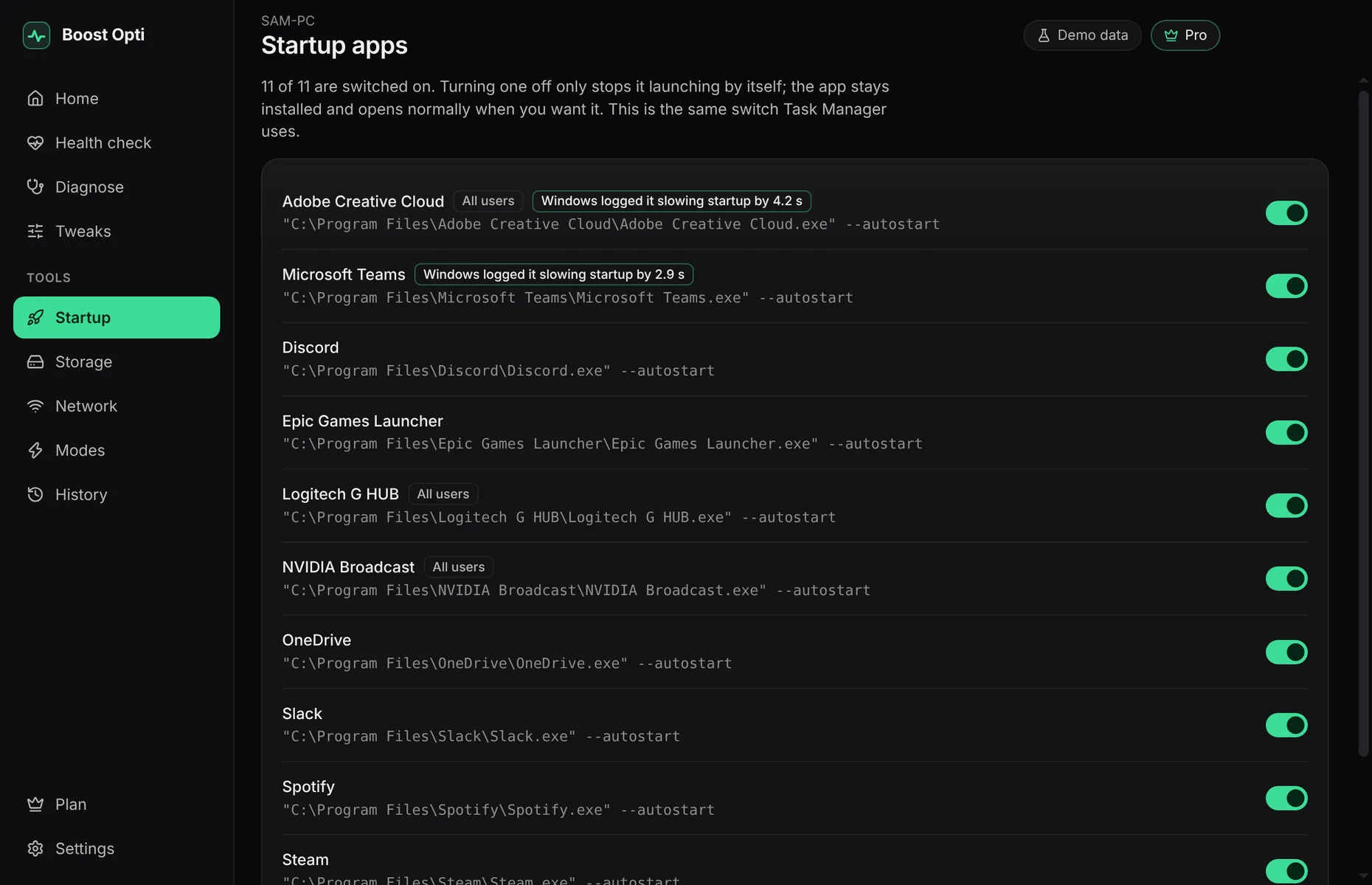
Startup lists every app that launches with Windows and the boot delay Windows logged for each one. Storage finds what filled the drive. The check reads battery and SSD wear, so you learn whether it’s the settings or the hardware.
What changed compares dated snapshots of programs, drivers, services, startup entries and Windows updates. Crashes reads the event log and explains blue screens and power losses, with stop codes translated.
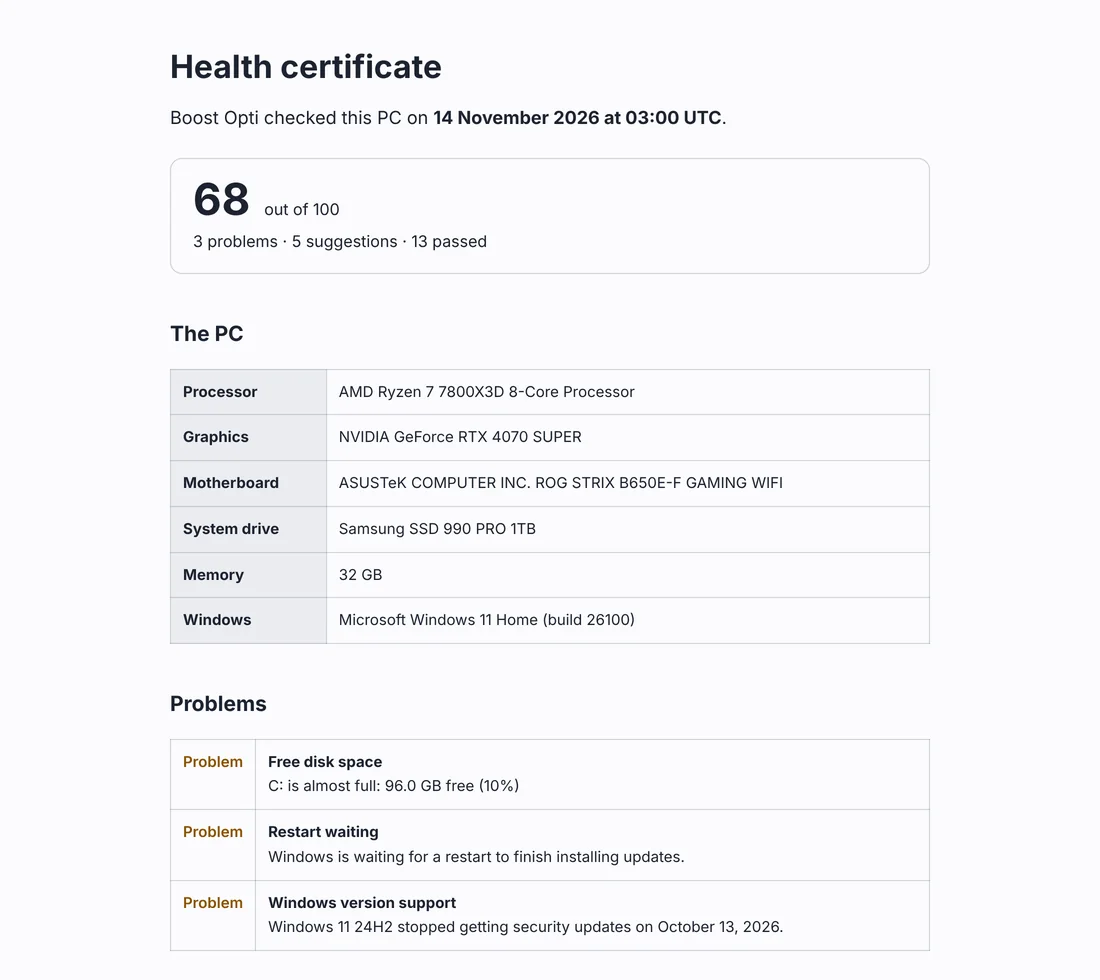
A report in a file can be edited. A certificate puts the check on a web page that nobody can change afterwards, you included. The buyer opens the address and sees for themselves. It’s removed after 30 days.
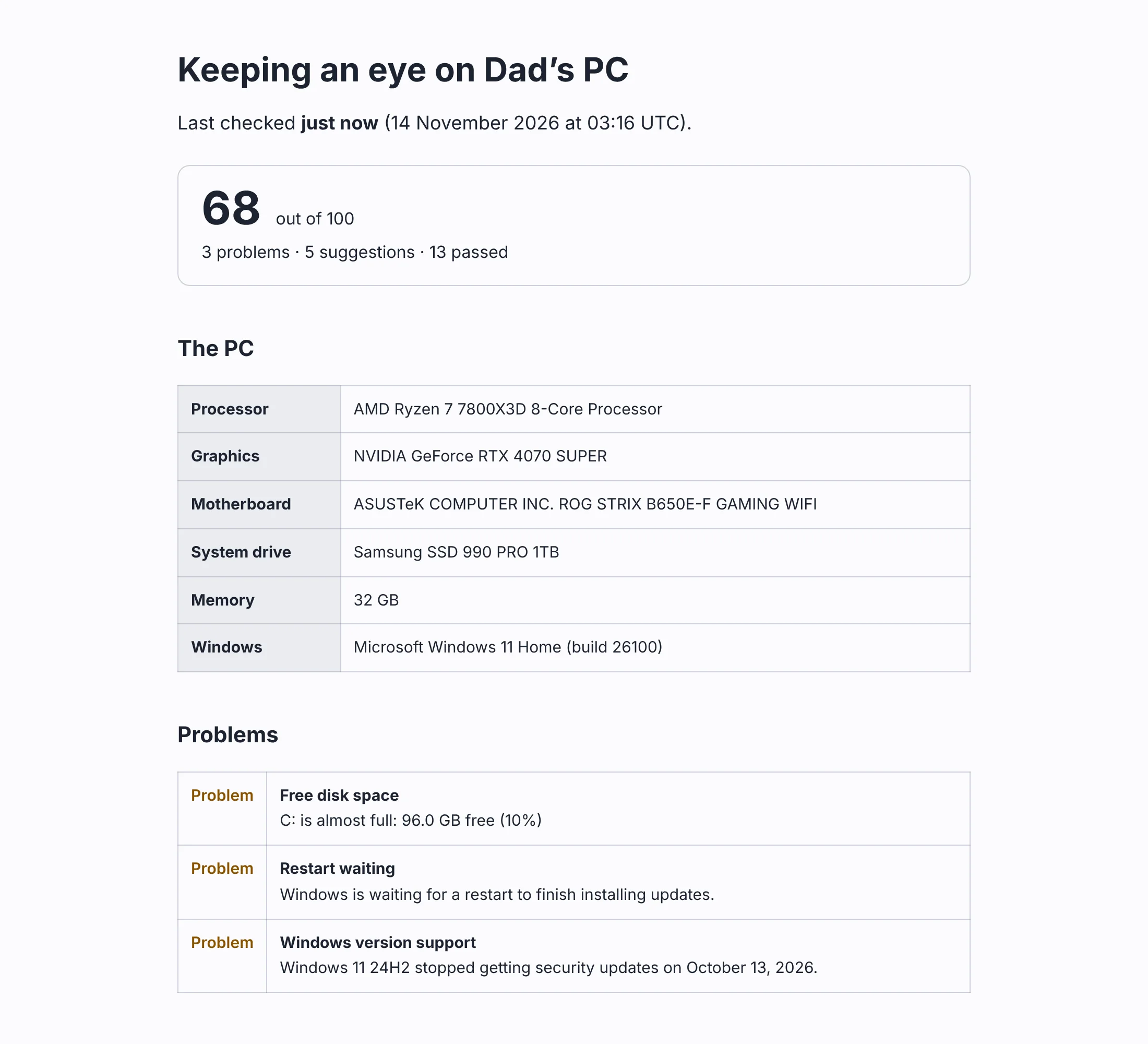
For a parent’s PC. They switch on a care link, and you get a private page with that PC’s latest check, on any phone. No account, nothing to install on your side, and they can stop it whenever they like.
What other tools walk past.
None of these is a registry tweak, so most optimizers never look. The lines in quotes are the app’s own wording, with example figures.
Monitor refresh rate
“Your screen is set to 60 Hz but can do 165 Hz.”
A fast monitor left at its slowest setting. One switch in Windows, and the most visible fix on this page.
Memory speed
“Memory is running at 4800 MHz but is rated for 6000 MHz.”
Fast memory at its slow default because a BIOS profile is off, or one stick doing the work of two.
Update sharing
“Windows has sent 3.1 GB of updates to strangers’ PCs this month.”
Windows using your upload to pass updates to other people. The app shows how much went out and keeps it to your own network.
Hibernation file
“Hibernation is holding 12.8 GB on the system drive.”
Gigabytes held for a feature a desktop PC may never use. On a laptop the app leaves it alone, because there it saves your work.
Each check reports only what the PC itself says. When Windows won’t say, the app tells you it couldn’t tell.
Proof mode
Before, after, and whether it mattered.
Take a baseline, change something, measure again. Most tuning tools ask you to take their word for it. This one hands you the numbers from your own PC.
Noise isn’t a result
Readings wobble a little from run to run. A difference inside that wobble is reported as no difference.
What did nothing goes back
When a change made no difference, the app offers to undo it. One press puts back everything since the baseline.
Privacy tweaks don’t claim speed
They aren’t expected to make the PC faster, and the app says so. They’re worth keeping for their own sake.
Boost Opti · Proof modeExample from our test PC
2 changes since the baseline: High performance power plan, transparency effects off
Measurement
Before
After
Processor speed test10% better
412 ms
371 ms
Disk write speedno measurable difference
1840 MB/s
1840 MB/s
Processor use at restno measurable difference
3.6%
3.6%
Memory in useno measurable difference
17.6 GB
17.6 GB
Running processesno measurable difference
214
214
Apps starting with Windowsno measurable difference
11
11
Time to start Windowsrestart, then measure again
31.4 s
–
Improved
1
No difference
5
Worse
0
Your PC prints its own.
Not in the box.
Every setting Boost Opti touches is one Windows itself provides. Anything that deletes files asks first. These were left out on purpose.
Registry “cleaning”
RAM “boosting”
Undocumented service hacks
Bundled driver downloads
Ads, tracking or analytics
Checking is free.
Find out everything that’s wrong without paying. Pro fixes it in one press and keeps watch afterwards.
Free
$0
Every health check, as often as you like
Why is it slow, crash explanations, and what changed
Trends, the network test, the storage scan and the health report
Proof mode: measure before and after
Undo for anything the app changed
Basic fixes: Game Mode, Storage Sense, advertising ID, Recycle Bin
One PC at a time; you can move it. 14-day money-back guarantee.
Fair questions.
How much faster will my PC get?
Nobody can tell you that honestly before measuring, and that includes us. On a PC that’s already set up well, the answer may be “not at all”, and Proof mode will say so. What the check does is look for the specific things holding this PC back: years of startup apps, a monitor or memory running below what it can do, a drive that’s nearly full.
Is it safe?
Every change is a setting Windows itself provides, and each one is recorded with the value it replaced. Undo puts that value back, and it works on the free plan. The app never deletes anything without asking first.
Will anti-cheat ban me for running it?
Nothing in it is what anti-cheat looks for. Boost Opti never touches a game or any other running program: it reads no other program’s memory, injects nothing, draws no overlay, loads no driver and sends no keystrokes or clicks. It changes Windows settings with Windows’ own tools, the same as you changing them by hand. It also leaves Secure Boot, the TPM and Windows’ other protections switched on, which are the things anti-cheat insists on. No anti-cheat maker publishes a list of approved programs, so nobody can promise this on their behalf. What we can tell you is exactly what the app does.
Does it do the registry tweaks other optimizers do?
The ones Windows documents, yes. Most of the 60 switches are registry settings. The famous ones from tuning guides are there too, under Advanced. Each of those says what it costs, or that people argue about whether it helps, and none is switched on for you. Switch one on, measure with Proof mode, and keep it if your own numbers moved. What we leave out is anything that turns off Windows’ own protections, and the “cleaners” that do nothing you can measure.
What does it send about me?
The check runs on your PC and its results stay there. There’s no advertising, analytics, tracking or crash reporting in the app. On the free plan it sends one thing: a once-a-day question asking whether a newer version exists, which you can switch off. With Pro it also confirms your subscription with our licence server. The privacy policy lists all of it.
Windows warned me about the installer. Why?
The installer doesn’t carry a publisher certificate yet, so Windows SmartScreen shows a warning the first time. Choose More info, then Run anyway. The download page gives a checksum, so you can confirm the file is the one we published before you run it.
Can I use Pro on more than one PC?
A subscription works on one PC at a time. You can move it to another PC from the app’s Plan page, a few times a month.
Can I get my money back?
Yes. Ask within 14 days of your first payment and you get all of it back, without giving a reason. The refund policy has the details.